Category Archives: Microsoft

Posts concerning news and beta programs from Microsoft. Also, posts dealing with Microsoft products, such as the Xbox 360.

This post is a collection of some of the more commonly used command line utilities when doing basic troubleshooting in a Windows domain environment.

To open a command window within a directory from Windows Explorer, hold the Shift key and right-click on the directory, then choose “Open command window here”.

cd

Displays the name of the current directory or changes the current folder.
http://www.microsoft.com/resources/documentation/windows/xp/all/proddocs/en-us/ntcmds.mspx?mfr=true

Used within a command window to change the current active directory, allowing navigation through the computer’s mapped drives and their directory structures.

Usage:

cd
Displays the current directory path.

cd
Moves to the root of the current drive.

cd /d e:
Moves to the E: drive from another drive. It’s also possible to move to a different drive by typing only the drive letter followed by a colon, ex: D:

cd..
Moves to the parent directory of the current directory (move up one directory toward the root).

cd “People to sue next”
Moves from the current directory into the subdirectory named “People to sue next”. A handy trick is to just type the first few characters of the directory name, and then hit the tab key to auto-complete the rest of the directory name from the first alphabetical match found, and even wrap it in double quotes if it contains spaces. For example, the same command as above can by typed: cd peop <tab>

If the current directory contains multiple matches for the characters typed, hitting tab again will cycle to the next match.

The tab method can be used more than once, to chain together a series of directories. For example, to move to the C:UsersPublicDocuments directory from a command prompt at the root of C:, one can type: cd u <tab> p <tab> d <tab> <tab> <enter>

dir

Displays a list of a directory’s files and subdirectories.
http://www.microsoft.com/resources/documentation/windows/xp/all/proddocs/en-us/dir.mspx?mfr=true

Usage:

dir
Displays the directories and files in the current directory.

dir /s
Displays the directories and files in the current directory and all sub directories.

Dir can also be used to search for a file, and in many cases it works better than the Windows Explorer search.

dir c:findme.txt /s
Displays a list of all instances of a file named “findme.txt” on the C: drive. It’s also possible to navigate to a location, such as the root of C:, and type: dir /s findme.txt to search that location and all subdirectories for a file named “findme.txt”.

Wildcards are allowed in the form of an asterisk. For example, type: dir c:*.doc /s to search the C: drive for all files with a .doc or .docx extension (I’m not sure why it also locates .docx files, but it does).

Another command line utility for searching for files is where, but the syntax is slightly more complicated.

gpupdate

Refreshes local and Active Directory-based Group Policy settings, including security settings.
http://www.microsoft.com/resources/documentation/windows/xp/all/proddocs/en-us/refrgp.mspx?mfr=true

After reading about the difference between gupdate and gpupdate /force, I now feel that gupdate is sufficient to reapply group policy nearly all of the time, and the /force switch shouldn’t automatically be used.

Usage:

gpupdate
Reapplies group policy.

gpresult

Displays Group Policy settings and Resultant Set of Policy (RSOP) for a user or a computer.
http://www.microsoft.com/resources/documentation/windows/xp/all/proddocs/en-us/ntcmds.mspx?mfr=true

Usage:

gpresult /r
Displays RSoP summary data, which includes the last time group policy was applied, from which server group policy was applied, and the groups for which the current user is a member.

gpresult /h gpreport.html
Generates a report of the applied group policy settings and saves it in HTML format as a file named gpreport.html. When generating a report as a user that is not a local administrator, either supply a full path to a valid location for gpreport.html, or navigate to a location (like the Public Documents directory) before running the command, or else the utility may be unable to create the report due to insufficient rights to the current directory.

ipconfig

Displays all current TCP/IP network configuration values and refreshes Dynamic Host Configuration Protocol (DHCP) and Domain Name System (DNS) settings. Used without parameters, ipconfig displays the IP address, subnet mask, and default gateway for all adapters.
http://www.microsoft.com/resources/documentation/windows/xp/all/proddocs/en-us/ipconfig.mspx?mfr=true

Usage:

ipconfig
Display the computer’s IP address and default gateway, for each network adapter.

ipconfig /all
Displays full TCP/IP information, including the MAC address, DHCP server, and DNS servers, for each network adapter.

net use

Connects a computer to or disconnects a computer from a shared resource, or displays information about computer connections. The command also controls persistent net connections. Used without parameters, net use retrieves a list of network connections.
http://www.microsoft.com/resources/documentation/windows/xp/all/proddocs/en-us/net_use.mspx?mfr=true

Usage:

net use
Lists all of the computer’s connections (mapped network drives).

net use e: \ComputerNameShareName
Maps the E: drive to the ShareName shared resource on the ComputerName computer. To map the local E: drive to the C: drive (which is a hidden share) of a remote machine named Loomer, type: net use e: \loomerc$

net use e: /delete
Removes the connection currently mapped to the local E: drive.

If you are connecting to a network share that your regular account does not have rights to access, you will be prompted for a username. You will need to also supply the domain, ex: domainusername

nslookup

Displays information that you can use to diagnose Domain Name System (DNS) infrastructure.
http://www.microsoft.com/resources/documentation/windows/xp/all/proddocs/en-us/nslookup.mspx?mfr=true

Usage:

nslookup <ipaddress or computername>
Queries the local computer’s default DNS name server for information on the specified IP address or computer name. Supply either piece of information and nslookup will return both pieces. It’s also possible to specify a particular DNS name server to be queried, which is useful when troubleshooting whether DNS is propagating/replicating correctly.

ping

Verifies IP-level connectivity to another TCP/IP computer by sending Internet Control Message Protocol (ICMP) Echo Request messages. The receipt of corresponding Echo Reply messages are displayed, along with round-trip times. Ping is the primary TCP/IP command used to troubleshoot connectivity, reachability, and name resolution.

You can use ping to test both the computer name and the IP address of the computer. If pinging the IP address is successful, but pinging the computer name is not, you might have a name resolution problem.
http://www.microsoft.com/resources/documentation/windows/xp/all/proddocs/en-us/ping.mspx?mfr=true

Usage:

ping <ipaddress or computername>
Makes four attempts to contact the computer at the specified IP Address or with the specified computer name, and reports back whether the machine could be contacted and the time taken for the request to travel to the remote computer, be acknowledged, and the acknowledgement received by the local computer.

ping <ipaddress or computername> -t
Repeatedly attempts to contact the remote computer until interrupted by pressing Ctrl+Break or Ctrl+C. This is sometimes called a persistent ping.

systeminfo

Displays detailed configuration information about a computer and its operating system, including operating system configuration, security information, product ID, and hardware properties, such as RAM, disk space, and network cards.
http://www.microsoft.com/resources/documentation/windows/xp/all/proddocs/en-us/systeminfo.mspx?mfr=true

The systeminfo command also reveals installed hotfixes and some information about the computer that isn’t readily available in Device Manager or other MMC Snap-ins, such as the BIOS version.

Usage:

systeminfo
Displays information about the local computer.

systeminfo /s computername /u domainuser
Displays information about a remote computer named computername.

systeminfo /s computername | find “System Model:”
Retrieves information about a remote computer named computername, but pipes the output of systeminfo to the find command, which returns only the line containing the string “System Model:”. This output in the command window shows only “System Model:” followed by the model of the remote computer.

The systeminfo report can be sent to a text file, ex: systeminfo > systeminforeport.txt

Bonus commands

getmac

Returns the media access control (MAC) address and list of network protocols associated with each address for all network cards in each computer, either locally or across a network.
http://www.microsoft.com/resources/documentation/windows/xp/all/proddocs/en-us/getmac.mspx?mfr=true

Usage:

getmac /v
Shows MAC addresses for the local computer.

getmac /s computername /u domainusername /v
Shows MAC addresses for a remote computer named computername while authenticating as a different user.

(Need to test this.)

msg

Sends a message to a user (this may be turned off in many environments). Run msg /? for usage information.

Microsoft has a nifty tool called Orca.exe that lets you directly edit options within msi installer files and msp patch files.

Orca.exe is a database table editor for creating and editing Windows Installer packages and merge modules. The tool provides a graphical interface for validation, highlighting the particular entries where validation errors or warnings occur.

This tool is only available in the Windows SDK Components for Windows Installer Developers. It is provided as an Orca.msi file. After installing the Windows SDK Components for Windows Installer Developers, double click Orca.msi to install the Orca.exe file.
http://msdn.microsoft.com/en-us/library/windows/desktop/aa370557(v=vs.85).aspx

Orca.msi was originally included in the Windows Installer 4.5 SDK, which is no longer available as a stand-alone download. Orca.exe version 5.0.7693.0 and other tools for working with msi files are part of the Microsoft Windows SDK for Windows 7 and .NET Framework 4 (or for previous versions, try the older Microsoft Windows SDK for Windows 7 and .NET Framework 3.5 SP1). The package that includes Orca.msi is available as an a la carte selection from the Microsoft Windows SDK web installer. Proceed through the web installer wizard and then select only the “Debugging Tools for Windows” under “Common Utilities” for the minimum install. Orca.Msi will be saved to “C:\Program Files\Microsoft SDKs\Windows\v7.1\Bin\”.

If you prefer a massive download just to get a 2 MB executable, the entire Microsoft Windows SDK is available as a 1.4 GB ISO from Microsoft Windows SDK for Windows 7 and .NET Framework 3.5 SP1 (ISO).

Should Windows 7 be old news to you, you can try the Windows Software Development Kit (SDK) for Windows 8. (I have no idea what’s in there.)

It’s often useful to know what logical and physical drives are available to Windows, and sometimes this needs to be done from the command line.

Logical drives

Here’s a handy command to return a list of logical drives in Windows.

wmic logicaldisk get caption,description,drivetype,providername,volumename

The Win32_LogicalDisk WMI class represents a data source that resolves to an actual local storage device on a computer system running Windows. While Caption, Description, DriveType, ProviderName, and VolumeName are useful in most cases, more properties are available, and a complete list is available at http://msdn.microsoft.com/en-us/library/windows/desktop/aa394173(v=vs.85).aspx. The output will be formatted as a table, the properties will be the column headings, and they will be placed into alphabetical order.

Caption is the drive letter of the logical disk. The Name property also returns the drive letter.

Description is the type of disk. For example: Local Fixed Disk, CD-ROM Disc, or Removable Disk.

DriveType is returned as an integer that corresponds to the type of disk drive the logical disk represents (and this matches the Description, making DriveType sort of superfluous).

0 = Unknown
1 = No Root Directory
2 = Removable Disk
3 = Local Disk
4 = Network Drive
5 = Compact Disc
6 = RAM Disk

ProviderName is the network path to the logical device.

VolumeName is the volume name of the logical disk.

Physical drives

And here is a command to return a list of physical drives.

wmic diskdrive list brief /format:list

The Win32_DiskDrive WMI class represents a physical disk drive as seen by a computer running Windows. Like the Win32_LogicalDisk WMI class, it has lots of properties, as listed at http://msdn.microsoft.com/en-us/library/windows/desktop/aa394132(v=vs.85).aspx.

For simplicity, though, and ease of reading in command window, wmic diskdrive list brief /format:list does the trick, particularly in combination with wmic logicaldisk.

During the development of our Windows 7 image with Office 2010, we began seeing a problem around our users’ Outlook 2010 profiles on the pre-production builds. On occasion, after logging into a machine for the first time, our users would be prompted to choose an Outlook profile upon the first launch of Outlook. Every time the Choose Profile dialog box was presented, it had only a single option in the profile name menu, and that option was always “BACKUP OF Outlook”, where Outlook was our customized profile as configured in a .PRF and applied via the Office OCT.

Background

We were not using .PST files and we were not using Windows Roaming Profiles, but we were using Group Policy logon and logoff scripts to roam certain portions of our user profiles, including the entire registry key at [HKEY_CURRENT_USERSoftwareMicrosoftWindows NTCurrentVersionWindows Messaging SubsystemProfiles]. With 20/20 hindsight, it’s clear that this unwanted behavior was not happening when we logged into a machine for the first time as a brand-new user (ie, while also preventing the logon script from merging the Profiles key from another machine into HKCU before Outlook was opened), but before a pattern had emerged, we considered the problem to be intermittent.

We were building machines using System Center 2012 Configuration Manager and using the Microsoft Office Customization Tool for configuring our .MSP and .PRF files. We were familiar with Active Setup and recognized that Outlook was doing a similar first-run process to set up a profile for what it thought was a new user. When it discovered that an Outlook profile already existed, it created a new profile named “BACKUP OF Outlook” and offered the user a Choose Profile dialog box with this profile as the only choice, presumably because “BACKUP OF Outlook” was not yet set to be the default profile.

Observed symptoms

When the logon script had roamed a user profile from another machine by importing the Profiles key, and before Outlook was launched for the first time, our Profiles key looked similar to this (the snippet has had the juicy bits removed):

Windows Registry Editor Version 5.00

[HKEY_CURRENT_USERSoftwareMicrosoftWindows NTCurrentVersionWindows Messaging SubsystemProfiles]
"DefaultProfile"="Outlook"

[HKEY_CURRENT_USERSoftwareMicrosoftWindows NTCurrentVersionWindows Messaging SubsystemProfilesOutlook]

After Outlook had been launched and the Choose Profile dialog box had been presented, the registry looked similar to this:

Windows Registry Editor Version 5.00

[HKEY_CURRENT_USERSoftwareMicrosoftWindows NTCurrentVersionWindows Messaging SubsystemDeletedProfiles]

[HKEY_CURRENT_USERSoftwareMicrosoftWindows NTCurrentVersionWindows Messaging SubsystemDeletedProfilesOutlook]

[HKEY_CURRENT_USERSoftwareMicrosoftWindows NTCurrentVersionWindows Messaging SubsystemProfiles]

[HKEY_CURRENT_USERSoftwareMicrosoftWindows NTCurrentVersionWindows Messaging SubsystemProfilesOutlook]

[HKEY_CURRENT_USERSoftwareMicrosoftWindows NTCurrentVersionWindows Messaging SubsystemProfilesBACKUP OF Outlook]

The changes we noted were that a new profile named BACKUP OF Outlook had been created, a new DeletedProfiles key had been created, our desired profile had been flagged for deletion via a subkey under DeletedProfiles, and the DefaultProfile string value under the Profiles key that had been pointing to our profile had been deleted.

If we launched Outlook but cancelled out of the Choose Profile dialog box, closed Outlook, and put the Profiles key back to the state before Outlook was launched, we could then relaunch Outlook without issue. It had no objection to using the roamed profile on the second launch or any subsequent launches. The problem might arise if this user roamed the Profile key to yet another machine, but we had not yet identified a pattern or means of reproducing the problem.

Complicating factors

This was happening during a time of rapid development, when the Office OCT was being changed frequently, and machines were hitting the floor with different Office builds. The users logging into these machines were not always aware of all of the changes between builds, and in many cases we were not roaming the user’s profile in an attempt to get a ‘clean’ test of the new build. These factors contributed to the difficulty in establishing a pattern or recognizing commonalities.

A decent amount of time was spent researching problems with Outlook profiles in general, and this research turned up a few forum threads (http://social.technet.microsoft.com/Forums/en-US/outlook/thread/f05c057b-d226-4b7f-bf0d-0406db5acdb1/) that indicated the problem stemmed from the .PRF file. (We also found some mentions of an “undocumented” property named BackupProfile in the .PRF: http://www.slipstick.com/outlook/tips-for-using-outlook-prf-files-to-configure-profiles/ and http://www.slipstick.com/outlook/config/understanding-microsoft-outlook-profile-file-prf/.) We experimented briefly with making changes to the .PRF as hinted at in these threads, but felt that such trial-and-error experimentation was not the best use of our time.

The epiphany

A tip passed along by one of our Kraft Kennedy consultants lead to the break-through.

When 32-bit Office is installed with an .MSP generated by the OCT, a GUID-named key is created under [HKEY_LOCAL_MACHINESOFTWAREWow6432NodeMicrosoftOffice14.0User Settings] that contains a value named Count with a data of 1. For example:

Windows Registry Editor Version 5.00

[HKEY_LOCAL_MACHINESOFTWAREWow6432NodeMicrosoftOffice14.0User Settings{75BB133B-F5DD-423C-8321-3BD0B50322A5}]
"Count"="1"

Much like Active Setup, when Outlook launches, it looks for a corresponding key in [HKEY_CURRENT_USERSoftwareMicrosoftOffice14.0User Settings], also with a
value named Count with a data of 1. If the matching key is not found, Outlook does its first-run process, applies the .PRF, and then writes the GUID-named key to HKCU so that the first-run behavior doesn’t happen on that machine again.

In our case, each time we made a change to the OCT and baked up a new OSD image in SCCM, the GUID-named key under HKLM changed. When a user from an old machine roamed to one of these new machines (or when a user initially on a new machine roamed to an older one), the GUID-named keys did not match and the first-run behavior fired off.

The resolution

Now that we better understood what was happening, we could evaluate a few ways to handle the situation. One way was to detect whether the user already had a default profile, and then add the current machine’s HKLM GUID key to her HKCU. Another way was to try to get a better handle on the .PRF and configure it to not create the backup, even when the first-run behavior was triggered. The latter seemed preferable, because we weren’t sure that avoiding the first-run behavior entirely was desirable. We suspected that there might be an advantage to allowing Office’s first-run process to play out, for example, if future changes to the OCT were made that needed to be added to the user’s environment.

After some communication with Microsoft, we made two changes to our .PRF that suppressed the creation of the BACKUP OF profile. The first change was to add BackupProfile=False to the Section 1, General area. The second change was to use UniqueService=Yes in the Section 4, Service1 area.

The corrected .PRF, in part, looks like this:

;Automatically generated PRF file from the Microsoft Office Customization and Installation Wizard

; **************************************************************
; Section 1 - Profile Defaults
; **************************************************************

[General]
Custom=1
ProfileName=Outlook
DefaultProfile=Yes
OverwriteProfile=Yes
ModifyDefaultProfileIfPresent=False
BackupProfile=False

...

;***************************************************************
; Section 4 - Default values for each service.
;***************************************************************

[Service1]
OverwriteExistingService=No
UniqueService=Yes
MailboxName=%UserName%

Some final thoughts

I would note that we are using BackupProfile=False, while many of the forum threads on the subject (incorrectly?) reference the property value as No, as in BackupProfile=No.

This “undocumented” BackupProfile property is actually quite well-documented, and even highlighted as important, in the TechNet article at http://technet.microsoft.com/en-us/library/cc179062.aspx.

A TechNet blog post from August, 2010, at http://blogs.technet.com/b/odsupport/archive/2010/08/06/multiple-exchange-accounts-created-in-outlook-2010-with-existing-outlook-profiles-after-upgrading-from-an-earlier-office-version-using-a-custom-msp.aspx is dedicated to a problem with multiple Exchange accounts that is resolved by making the same two changes to the .PRF. The blog post helpfully points out that the manually edited .PRF file must exist in the same location as the .PRF originally used with the OCT:

NOTE: If Outlook/Exchange settings in the MSP file need to be edited in the future, the custom PRF file created to work around this issue must be copied to the same location as it was when originally imported into the OCT (i.e., C:Custom14.PRF) on the machine that you’re running the Office Customization Tool on when modifying the MSP file.
http://blogs.technet.com/b/odsupport/archive/2010/08/06/multiple-exchange-accounts-created-in-outlook-2010-with-existing-outlook-profiles-after-upgrading-from-an-earlier-office-version-using-a-custom-msp.aspx

The work yet to be done

Without further testing, it remains unclear whether the BackupProfile=False instruction, possibly in combination with other options in the .PRF, causes settings in the .PRF to be merged into the existing Outlook profile, or whether the presence of an existing profile means Outlook just doesn’t do anything with the .PRF.

Customize Outlook profiles by using an Outlook Profile (PRF) file
An existing profile can be either overwritten or updated when a new .prf file is executed. Several settings control how the new settings are applied:

The OverwriteProfile setting can be set to Yes, Append, or No. To update existing profiles, set the value to Append. This preserves the existing profile and updates the sections that have been changed. To overwrite existing profiles with a new profile, set the value to Yes. To prevent overwriting an existing profile, set the value to No.

The ModifyDefaultProfileIfPresent setting can be set to True or False. When set to True, Outlook will modify the default profile even if the new and existing profile names are different.
http://technet.microsoft.com/en-us/library/cc179062.aspx

I would also like to better understand how the GUID-named key gets its name. The TechNet article on the Office Customization Tool in Office 2010 seems to possibly allude to the GUID being a timestamp.

Every time that you save a customization file in the OCT, the tool updates the customization file’s sequencing number with the current computer date and time stamp and generates a new update globally unique identifier (GUID).

http://technet.microsoft.com/en-us/library/cc179097.aspx

As it seems to be the subject of some debate, I want to point out that Microsoft supports applying Setup customization .msp files to existing installations of Office 2010. I suspect, but have not attempted to confirm, that this would generate additional GUID-named keys.

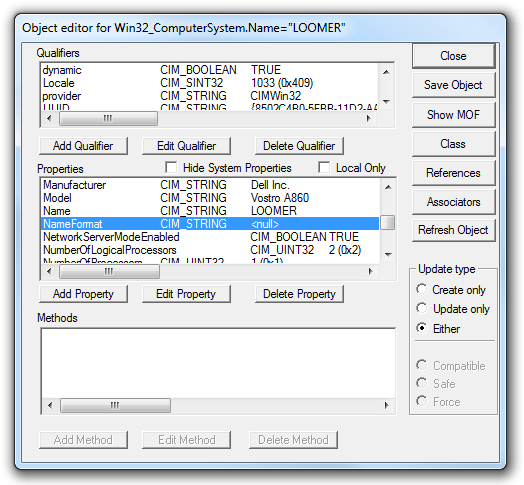
Sure, Wbemtest.exe is pretty neat, and it gets points for being built-in. http://blogs.technet.com/b/chad/archive/2012/03/08/tip-45-wbemtest-the-underappreciated-tool.aspx

Microsoft's Wbemtest.exe

Microsoft’s Wbemtest.exe displaying a WMI query

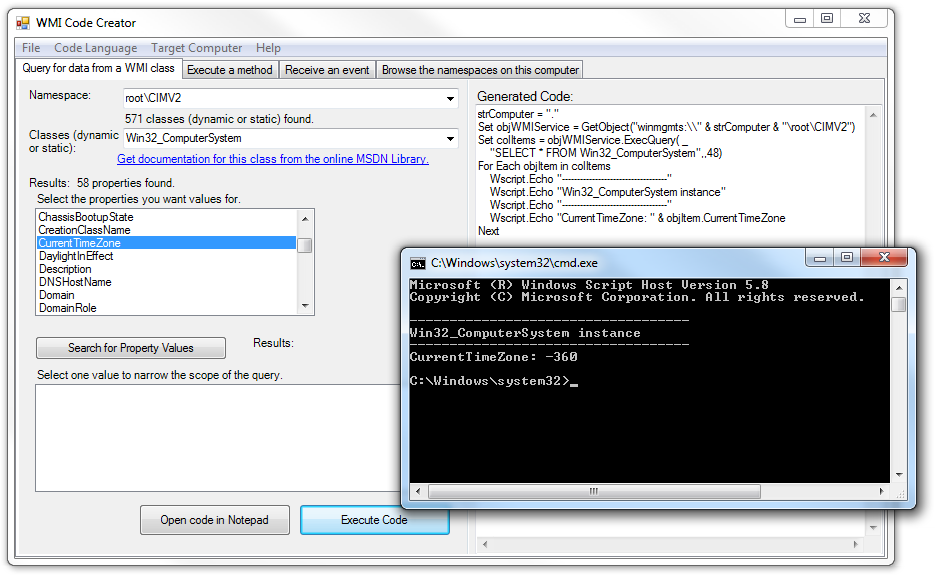
But when it comes to building WMI queries for use in scripting languages, Microsoft’s WMI Code Creator is even slicker. http://technet.microsoft.com/en-us/magazine/2006.01.utilityspotlight.aspx

The WMI Code Creator tool allows you to generate VBScript, C#, and VB .NET code that uses WMI to complete a management task such as querying for management data, executing a method from a WMI class, or receiving event notifications using WMI.

http://technet.microsoft.com/en-us/scriptcenter/dd823314.aspx

Microsoft's WMI Code Creator displaying a WMI query and VBScript

Microsoft’s WMI Code Creator displaying a WMI query and VBScript

Sadly, it’s no longer easy to find the WMI Code Creator utility on microsoft.com. Thankfully, it’s still available on Download.com: http://download.cnet.com/WMI-Code-Creator/3000-2229_4-10731137.html

I wanted to use BGInfo to display only the IPv4 address(es) of a workstation. BGInfo’s built-in IP address ouput returns both IPv4 and IPv6 formatted addresses, but you can use the output of a VBScript as a data source for a custom field. Starting with the nice script provided in the comments of the TechNet forum thread at: WMI Query to retrieve only active IPv4 address, I’ve made a few aesthetic changes so that the IPv4 addresses of active network adapters are displayed in a single column.

'From http://social.technet.microsoft.com/Forums/et-EE/ITCG/thread/bb74c2eb-eca2-455d-a270-8dd0f3d195e6

strMsg = ""
strComputer = "."
intCounter = 0

Set objWMIService = GetObject("winmgmts:" & "{impersonationLevel=impersonate}!\" & strComputer & "rootcimv2")
Set IPConfigSet = objWMIService.ExecQuery("Select IPAddress from Win32_NetworkAdapterConfiguration WHERE IPEnabled = 'True'")

For Each IPConfig in IPConfigSet
 If Not IsNull(IPConfig.IPAddress) Then
 For i = LBound(IPConfig.IPAddress) to UBound(IPConfig.IPAddress)
  If Not Instr(IPConfig.IPAddress(i), ":") > 0 Then
	If intCounter > 0 Then
		strMsg = strMsg & vbcrlf & vbtab & IPConfig.IPAddress(i)
	Else
		strMsg = IPConfig.IPAddress(i)
	End If
	intCounter = intCounter + 1
  End If
 Next
 End If
Next

Echo strMsg

Ideally, I’d be able to report whether the IP address was attached to a wired or wireless adapter, but that is beyond the scope of this particular project.

But, in the event that someone wants to do something that sophisticated, Microsoft’s WMI Code Creator v1.0 would be a very good place to start.

The WMI Code Creator tool allows you to generate VBScript, C#, and VB .NET code that uses WMI to complete a management task such as querying for management data, executing a method from a WMI class, or receiving event notifications using WMI.

http://www.microsoft.com/en-us/download/details.aspx?id=8572

Hint: look at the Description property of the Win32_NetworkAdapterConfiguration class.

I recently discovered that IE9 remembers the Compatibility View setting for a domain name, but does not remember the setting for an IP address, if the browser is closed and the option to “Delete browsing history on exit” is checked. The “Delete browsing history on exit” on is found under the General tab in Internet Options.

If you choose to view a website in Compatibility View, as a convenience to you, Internet Explorer will remember this choice and use Compatibility View the next time you visit the site. You can clear the list of websites you’ve chosen to display in Compatibility View by using the Delete Browsing History feature in Internet Explorer or the Compatibility View Settings dialog box.
http://windows.microsoft.com/en-US/internet-explorer/products/ie-9/windows-internet-explorer-9-privacy-statement

Update: Hmm, actually. I think I’m wrong about this, or there’s more to it than meets the eye.

In our corporate environment, our Windows 7 workstations can be powered off or restarted remotely in order to deploy updates, patches, or new software. For those of us running virtual machines in VMware Workstation, this means a running guest operating system would experience an abrupt power-off as the host machine is reset. At the very minimum, this causes the ‘Windows was not shut down properly’ message to appear when the guest OS is powered on, and it may cause serious problems with the integrity of the guest OS or the virtual machine files.

I wanted to improve the situation through the use of shutdown/logoff and startup/logon scripts on the host and the vmrun command line utility that ships with VMware Workstation and VMware Server, and I had three goals in mind.

  1. Any running guest OS would be allowed to shut down or suspend before the host powered off
  2. An event would be written to the Application log on the host for each guest that was shut down or suspended
  3. A complementary process would start or resume each guest that was running when the host restarted

The VBScripts are written for use on a 64-bit Windows 7 host.

The challenge of correct timing

I soon ran into a problem when trying to use Local Group Policy to deploy the shutdown/logoff script on my Windows 7 host. The order of events is such that the shutdown/logoff process is halted by the still-running vmware.exe process (the VMware Workstation UI). I’ve added some notes about this behavior to the bottom of the post, but I have not yet solved this problem.

A word about networking

If the network adapter in the guest OS is not reconnected upon resuming from suspend (in Windows, this can be resolved with ipconfig /renew), it may be that the VMware Tools scripts are not running at start up/resume. Disconnecting from the network is a normal process when the VM receives a suspend command with a soft parameter. I have found that I can ensure that the network adapter is reconnected upon resuming by changing the Power Options for the VM to use “Start Up Guest” instead of “Power On”.

The shutdown/logoff script

This is what I came up with for the shutdown/logoff script.

' This script passes the suspend command to each running VMware virtual machine, allowing it to gracefully sleep/hibernate
' It also saves the list of running VMs to a text file in %TEMP%, which may be parsed by a startup/logon script to resume the VMs
' It can be used as a shutdown/logoff script
' http://www.ardamis.com/2012/03/08/managing-vmware-workstation-virtual-machines-with-vbscript/

Option Explicit

Dim objShell, objScriptExec, objFSO, WshShell, strRunCmd
Dim TEMP, strFileName, vmList, objFile, ForWriting, result, textLines, textLine, isFirstLine

'Initialize the objShell
Set objShell = CreateObject("WScript.Shell")

'Execute vmrun and create the list of running virtual machines
Set objScriptExec = objShell.Exec("""C:Program Files (x86)VMwareVMware Workstationvmrun.exe"" list")

'Write the list to a variable
vmList = objScriptExec.StdOut.ReadAll()

'Debug
'WScript.Echo vmList

'Initialize the wshShell
Set WshShell = WScript.CreateObject("WSCript.shell")

TEMP = WshShell.ExpandEnvironmentStrings("%TEMP%")

'Enter the path to the file that will hold the names of the running VMs
strFileName = TEMP & "vms.txt"

'Debug
'WScript.Echo strFileName

'Initialize the objFSO
Set objFSO = CreateObject("Scripting.FileSystemObject")

'Create the file
Set objFile = objFSO.CreateTextFile(strFileName)

'Write the list to the file
objFile.Write vmList

'Close the file
objFile.Close

'Split the list into lines
textLines = Split(vmList,vbCrLf)

'Loop through the lines
For Each textLine in textLines

	'Compare the first line in the file to the text "Total running VMs:"
	isFirstLine = StrComp(Mid(textLine, 1, 18), "Total running VMs:")

	'If the line has more than 0 character (is not blank) and is not the first line
	If Len(textLine) > 0 And isFirstLine <> 0 Then
	
		'Write to the application log
		WshShell.LogEvent 4, "Event: VMware is attempting to suspend the VM at " & textLine

		'Save the command as a variable
		strRunCmd = """C:Program Files (x86)VMwareVMware Workstationvmrun.exe"" -T ws suspend """ & textLine & """ soft"

		'Run the command
		result = WshShell.Run(strRunCmd, 0, True)

		'Write to the application log
		If result = 0 Then 
			WshShell.LogEvent 4, "Event: VMware successfully suspended the VM at " & textLine
		Else
			WshShell.LogEvent 1, "Event: VMware was unable to suspend the VM at " & textLine
		End If

'Debug
'WScript.Echo result
		
'Debug
'WScript.Echo textLine

	End If

Next

The vms.txt file that the script creates will contain something like the following, if it finds a running VM:

Total running VMs: 1
C:Virtual MachinesWindows XP ProfessionalWindows XP Professional.vmx

I have chosen to suspend the virtual machine, rather than shut it down, because I don’t want to lose any work that may be unsaved. The official explanation of the suspend power command from VMware:

Suspends a virtual machine (.vmx file) or team (.vmtm) without shutting down, so local work can resume later. The soft option suspends the guest after running system scripts. On Windows guests, these scripts release the IP address. On Linux guests, the scripts suspend networking. The hard option suspends the guest without running the scripts. The default is to use the powerType value specified in the .vmx file, if present.
To resume virtual machine operation after suspend, use the start command. On Windows, the IP address is retrieved. On Linux, networking is restarted.
http://www.vmware.com/support/developer/vix-api/vix110_vmrun_command.pdf

The startup/logon script

This is the startup/logo script that compliments the shutdown/logoff script.

' This script reads a list of VMware virtual machines from a text file and passes the start command to each VM, allowing it to resume from sleep/hibernate/shutdown
' It can be used as a startup/logon script
' http://www.ardamis.com/2012/03/08/managing-vmware-workstation-virtual-machines-with-vbscript/

Option Explicit

Dim objFSO, WshShell, strRunCmd
Dim TEMP, strFileName, objTextStream, vmList, ForReading, result, textLines, textLine, isFirstLine

'Initialize the wshShell
Set WshShell = WScript.CreateObject("WSCript.shell")

TEMP = WshShell.ExpandEnvironmentStrings("%TEMP%")

'Enter the path to the text file that will hold the names of the running VMs
strFileName = TEMP & "vms.txt"

WshShell.LogEvent 4, "Event: VMware is attempting to find a list of VMs to restart in " & strFileName

'Initialize the objFSO
Set objFSO = CreateObject("Scripting.FileSystemObject")

'Check to see if the text file exists
If objFSO.FileExists(strFileName) Then

	'Open the text file
	Set objTextStream = objFSO.OpenTextFile(strFileName, 1)
	
	'Read the contents into a variable
	vmList = objTextStream.ReadAll()

'Debug
'WScript.Echo vmList

	'Close the text file
	objTextStream.Close

	'Split the list into lines
	textLines = Split(vmList,vbCrLf)

	'Loop through the lines
	For Each textLine in textLines

		'Compare the first line in the file to the text "Total running VMs: 0"
		isFirstLine = StrComp(Mid(textLine, 1, 20), "Total running VMs: 0")
		
		'Check to see if the first line of the text file reports 0 running VMs
		If isFirstLine = 0 Then
		
			'Write to the application log
			WshShell.LogEvent 4, "Event: VMware found no running VMs were enumerated in " & strFileName

		End If

		'Compare the first line in the file to the text "Total running VMs:"
		isFirstLine = StrComp(Mid(textLine, 1, 18), "Total running VMs:")
		
		'If the line has more than 0 character (is not blank) and is not the first line
		If Len(textLine) > 0 And isFirstLine <> 0 Then
		
			'Write to the application log
			WshShell.LogEvent 4, "Event: VMware is attempting to start the VM at " & textLine

			'Save the command as a variable
			strRunCmd = """C:Program Files (x86)VMwareVMware Workstationvmrun.exe"" -T ws start """ & textLine

			'Run the command
			result = WshShell.Run(strRunCmd, 0, True)

			'Write to the application log
			If result = 0 Then 
				WshShell.LogEvent 4, "Event: VMware successfully started the VM at " & textLine
			Else
				WshShell.LogEvent 1, "Event: VMware was unable to start the VM at " & textLine
			End If

'Debug
'WScript.Echo result
			
'Debug
'WScript.Echo textLine

		End If

	Next

Else
	WshShell.LogEvent 4, "Event: VMware did not find a list of VMs to restart at " & strFileName
End If

This script starts/resumes the virtual machine and launches the Workstation user interface.

Timing of the shutdown/logoff events

Using Group Policy shutdown/logoff scripts seemed a natural way to power off and resume the virtual machines, but there is a timing problem that prevents this from working as desired. Instead of running any logoff scripts immediately when the user chooses to log off, Windows first tries to close any open applications by ending running processes. When it encounters vmware.exe, which is the VMware Workstation GUI, it pauses the log off process and asks the user whether the log off should force the applications to close, or if the log off should be cancelled.

On Windows 7, the screen will dim and the programs that are preventing Windows from logging off the user or shutting down are listed.

Windows 7 - 1 program still needs to close

Windows 7 - VMware Workstation prevents shutdown or logoff

1 program still needs to close:

(Waiting for) [VM name] – VMware Workstation
1 virtual machine is in use.

To close the program that is preventing Windows from logging off, click Cancel, and then close the program.
[Force log off] [Cancel]

As pointed out on the vmware.com community forums, this only happens when the Workstation UI process is running at the time.

We don’t support running Workstation a service. I assume you’re using some third-party tool for that?

Anyway, that error only appears if the Workstation UI is running when you try to log off. If you kill the UI process (vmware.exe) and let the VM run in the background, you shouldn’t get that. Alternatively you could try running VMware Player instead of VMware Workstation a service.
http://communities.vmware.com/message/1189261

Quitting the Workstation process and allowing the scripts to close out the actual VMs seemed like an acceptable compromise. It still required some user interaction on the host to prepare the guest to be powered off, but I figured that there may be ways to end the Workstation UI programatically prior to the logoff.

I decided to consult the Workstation 7.1 manual:

You can set a virtual machine that is powered on to continue running in the background when you close a virtual machine or team tab, or when you exit Workstation. You can still interact with it through VNC or another service.
From the VMware Workstation menu bar, choose Edit > Preferences. On the Workspace tab, select Keep VMs running after Workstation closes and click OK.
http://www.vmware.com/pdf/ws71_manual.pdf

I found that if the VMware Workstation application is already closed, the shutdown/logoff proceeds smoothly and the scripts fire. But there is another problem. By the time the logoff script runs, the vmware-vmx.exe process (the actual virtual machine) has already been quit, so the vmrun list command finds no running VMs and you end up with a vms.txt file that contains this:

Total running VMs: 0

At this point, running VMware Player like a service logged on as the Local System account, which presumably will allow the VMs to continue running even while users on the host log out, becomes the best solution, as it theoretically avoids the problem of a) requiring the user to close the UI and b) the vmware-vmx.exe process being ended as the user logs off. VMware Player is included with Workstation, but we’re not quite out of the woods yet. According to another VMware employee:

VMware Player is not built to run as a service. However, there are different discussions and possible solutions using srvany.exe.
If you google for site:vmware.com srvany player you will find some interesting posts for this issue.
http://communities.vmware.com/message/1595588

I followed through on this suggestion, and while it didn’t solve my problem, I’m including some detail here in the hopes that it will further someone else’s exploration.

To run an application as though it were a service, you need two executables from the Windows Server 2003 Resource Kit Tools:

  • Instsrv.exe: Service Installer
  • Srvany.exe: Applications as Services Utility

The Windows Server 2003 Resource Kit Tools are not officially supported on Windows 7, and in fact the installer will cause the Program Compatibility Assistant to warn that “This program has known compatibility issues”, but my observations seems to support other people’s reports that they work fine.

A Windows .Net magazine article from 2004 referencing Workstation 4.0 is still a good guide to follow in setting this up. My adjustments for using Player are below:

  1. Install the Windows Server 2003 Resource Kit Tools and reboot
  2. Locate srvany.exe (the default location is C:Program Files (x86)Windows Resource KitsToolssrvany.exe)
  3. Open an elevated command prompt and enter instsrv [service name] [srvany.exe location], using anything you want for the service name (ex: instsrv vmplayer “C:Program Files (x86)Windows Resource KitsToolssrvany.exe”)
  4. Open an elevated instance of the Windows Services snap-in (services.msc), right-click the newly created service, choose the Log On tab, and check the box next to “Allow service to interact with desktop”
  5. Open an elevated instance of Registry Editor (regedit.exe)
  6. Locate vmplayer.exe (the default location is C:Program Files (x86)VMwareVMware Workstationvmplayer.exe)
  7. Navigate to your service’s key at HKEY_LOCAL_MACHINESYSTEMCurrentControlSetservices[service name]
  8. Create a new subkey named Parameters under your service’s key
  9. Create a new String Value named Application under the Parameters key
  10. Double-click the Application value and enter the path to vmplayer.exe as the value’s data

You should now be able to start the vmplayer service (or whatever you chose to name it) from the Services snap-in.

But, we’re still not home free. This doesn’t magically allow any instance of VMware Player to persist through a user logoff (which is really what I was hoping to get).

The harsh reality set in when I came across this thread, wherein continuum (a guy with incredible insight into VMware) bursts the vm-as-a-service balloon:

there are 2 ways to run the service …
- run it with “local system account” plus “allow to interact …” checked
- run it as a user – needs the password of this user

In first case the VM starts after a user is logged in – the VM is visible and you can interact with it but you can NOT log off.
It use process vmplayer.exe plus vmware-vmx.exe.

In second case the VM is invisible and only process vmware-vmx.exe runs but no user has to be logged in
http://communities.vmware.com/message/1471897#1471897

What I need is the best of both worlds: a VMware GUI environment, be it Workstation or Player, that is able to load a VM when a user logs into the host, and at the same time is able to keep the VM running while that user logs off.

Ultimately, I’m left with the same feelings as expressed toward the end of the thread at http://communities.vmware.com/message/1402590: why should useful and highly sought-after functionality that is present in the free but no-longer-actively developed Server product be absent from the non-free and actively developed Workstation product?

The answer, if there is one, may be that VMware doesn’t want to get involved.

One of the nastier corner cases is, what happens if there is a failure suspending the VM? Do we decide the user really wanted to log off and forcibly kill the VM, or do we veto the log-off and go back to the user for input (which, if you are using a laptop, means closing the lid leaves the VM running and kills the battery)? What if the VM process crashes during this – who initiates the log-off then? What if the VM is busy doing something expensive (like disk consolidation) and cannot suspend? Getting involved in the log-off path is, realistically, just a mess of bugs.
http://communities.vmware.com/thread/233117

Final thoughts

As with pretty much anything I do, this is far from finished. I’m not ready to give up on the goal of using scripts to start and suspend VMs without any user interaction. But it seems that it’s going to be much more difficult than one might reasonably expect.

As for the scripts themselves, I’m slightly bothered by the empty command prompt window that is opened momentarily by objShell.Exec. I’m not sure that I like saving the list of running VMs to %TEMP%, where it may be deleted by other processes that clean that location at login/logout. But they are a good start, and they seem to serve their purpose.

I’ve been a fan of the simple and effective Windows 7 USB/DVD Download Tool for quite awhile, and have often used it to create a bootable USB flash drive for installing Windows 7.

But I recently ran into a problem with a flash drive after connecting it to my Xbox 360 and using it to move my profile. The Xbox 360 must have made some change to the MBR on the flash drive that the WUDT didn’t like, because it was unable to format the drive.

The WUDT would begin to format the drive, then report:

We were unable to copy your files. Please check your USB device and the selected ISO file and try again.

Windows 7 had no problems formatting the drive, but something was obviously missing from the process.

A quick search in Google turned up the solution. The formatting done by Windows 7 or the WUDT wasn’t cleaning the MBR and partition table.

To thoroughly format the drive so that it can be used by the WUDT, open an elevated command prompt and enter the following commands, using the drive number of the USB drive reported in list disk for the value of select disk #.

diskpart
list disk
select disk #
clean
create partition primary
select partition 1
active
format quick fs=fat32
assign
exit

For the curious, here’s a more detailed explanation of the clean command:

Removes any and all partition or volume formatting from the disk with focus. On master boot record (MBR) disks, only the MBR partitioning information and hidden sector information are overwritten. On GUID partition table (GPT) disks, the GPT partitioning information, including the Protective MBR, is overwritten; there is no hidden sector information.
http://technet.microsoft.com/en-us/library/cc766465(v=ws.10).aspx

I would expect that the MBR and partition table would need to be cleaned after formatting a drive for booting Mac OS X, too.

Credit: http://4sysops.com/archives/windows-7-usbdvd-download-tool-wudt-is-unable-to-copy-files/

I recently reinstalled Windows 7 and then VM Workstation 7 on a machine that I’d been using as a VMware Workstation host running an XP virtual machine. The VM is named “XP-Office2007″ and it resides on a separate physical hard drive in the machine. Since the reinstall, upon clicking the “Power on this virtual machine” link, VMware returns a cryptic “Internal error.” and fails to start the VM.

VMware Workstation - Internal error.

VMware Workstation - Internal error.

The vmware log in %temp% had the following entries:

Mar 01 09:28:46.750: vmui| CVMUIStatusVM::OnPowerVM clicked
Mar 01 09:28:46.920: vmui-1176| /vm/#6f7088f493f32788/: VMHSVMCbPower: Setting state of VM to powerOn with option hard
Mar 01 09:28:46.921: vmui-1176| VMHSGetVMX failed: Empty vmxFilePath
Mar 01 09:28:46.921: vmui-1176| VMHSLaunchVM failed: VMDB failure
Mar 01 09:28:46.957: vmui| Internal VMDB error: VMDB failure
Mar 01 09:28:46.957: vmui| Internal error.
Mar 01 09:28:46.957: vmui| VMDlg::ShowDialog: Internal error.

Of course, I immediately started Googling these errors and failure messages, but found very little. At least one page indicated that a similar sounding problem wasn’t resolved by re-installing VMware. I like to think I’m pretty decent with VMware, so I decided I’d roll up my sleeves, dig into the VM, and try to figure it out.

Trying to get lightning to strike twice, I tried my old standby fix of editing the name of the hard drive in the *.vmx file. Instead of pointing the IDE drive to the “XP-Office2007-000001.vmdk” file, I moved that file out of my VM directory and then changed the ide0:0.fileName value to point to the older *.vmdk file, named “XP-Office2007.vmdk”. The IDE lines now looked like this:

ide0:0.present = "TRUE"
ide0:0.fileName = "XP-Office2007.vmdk"
ide1:0.present = "TRUE"
ide1:0.fileName = "E:"

When the machine was powered on, it still failed, but with a different and more descriptive error:

VMware Workstation - Unable to open file

VMware Workstation - Unable to open file

VMware Workstation
Unable to open file “D:VMwareVirtual MachinesXP-Office2007XP-Office2007.vmdk”: One of the disks in this virtual machine is already in use by a virtual machine or by a snapshot.

The more verbose message from the vmware log in %temp% read:

Mar 01 10:31:22.814: vmui| CVMUIStatusVM::OnPowerVM clicked
Mar 01 10:31:23.016: vmui-3992| SNAPSHOT: SnapshotDiskTreeAddFromSnapshot: Trying to add snapshot XP-Office2007-Snapshot2.vmsn to disk D:VMwareVirtual MachinesXP-Office2007XP-Office2007.vmdk which already has snapshot currentState.
Mar 01 10:31:23.016: vmui-3992| Cannot open D:VMwareVirtual MachinesXP-Office2007XP-Office2007.vmdk of type disk: One of the disks in this virtual machine is already in use by a virtual machine or by a snapshot.
Mar 01 10:31:23.016: vmui-3992| Cmd /vm/#6f7088f493f32788/cmd/##94/op/checkMissingFiles/ failed: Unable to open file "D:VMwareVirtual MachinesXP-Office2007XP-Office2007.vmdk": One of the disks in this virtual machine is already in use by a virtual machine or by a snapshot.
Mar 01 10:31:23.016: vmui| Unable to open file "D:VMwareVirtual MachinesXP-Office2007XP-Office2007.vmdk": One of the disks in this virtual machine is already in use by a virtual machine or by a snapshot.
Mar 01 10:31:23.016: vmui| VMDlg::ShowDialog: Unable to open file "D:VMwareVirtual MachinesXP-Office2007XP-Office2007.vmdk": One of the disks in this virtual machine is already in use by a virtual machine or by a snapshot.

I copied only the *.vmx and *.vmdk files into a new folder and tried to launch the *vmx as a new VM, but got the Internal error message again. This was something of a relief, as it suggested that the problem wasn’t with the VM itself.

I tried to create a new, empty virtual machine using the New Virtual Machine Wizard, but the process didn’t complete. After setting up the basic machine, I clicked the Finish button in the wizard, but the window did not close. The *.vmx and *.vmdk files were created, however. When I closed the window with the red X and tried to power on the VM, I got the same Internal error message.

I found a VMware community article suggesting that I needed to run Windows Updates on the host. This seemed logical, as perhaps the old host had more recent updates, but I found that the current host was up to date.

As I was running out of ideas, I decided that maybe re-installing Workstation was worth a shot, so I first checked in SCCM Software Center and found it had a Failed status. I then looked in Windows Programs and Features and found it wasn’t listed at all.

I reinstalled Workstation from Software Center and lo and behold, the VMs powered up normally. If I’d just kept my self-confidence in check, I would probably have gotten around to verifying the install much sooner.